Website Builder
Dynamic Content: Internal Collections
Dynamic Content: Internal Collections
Internal Collections are spreadsheets saved and managed in the Content Library of a site. They can be used to create Dynamic Pages (see Dynamic Content: Dynamic Pages). and regular pages, similar to how Connected Data is used with the site's Business Info (see Collections for Dynamic Content: Collections for Regular Pages). For more information on Connected Data with Business Info, see Dynamic Content: Business Info, Text, and Images.
For an overview on Collections and formatting guidelines, see Dynamic Content: Collections.
Note
Slashes ("/") are not supported in the collection's name.
Limitations and Specifications per Collection Type
Internal Collections
Google Sheets
Airtable
External
Collection Number per Site
100
100
100
100
A single collection's data
N/A
20MB
20MB
20MB
Rows
500
N/A
N/A
N/A
Fields (columns)
150
100
100
100
Collection name character limit
50
50
50
50
Field name character limit
50
50
50
50
Page item URL character limit
350
350
350
350
Text field character limit
5000
N/A
N/A
N/A
Inner collection Rows
Not supported
Not supported
Supported
N/A
Image Collection
Supported
N/A
N/A
N/A
Update data
Site/content library publish
Automatically
Automatically every hour
Automatically every hour
Available Fields
Below is a table with the data types that are available and notes and examples.
Data Type
Examples
Notes
Plain Text
Welcome to my dentist office.
Standard text, can be used for widgets such as title tags and text widgets.
Rich Text
Welcome to my dentist office.
Text styles and links will come over.
Image
-
Select from Image Picker
Link
Example: https://goo.gl/maps/F81HPm4CBTQSTsJ5A
Select if you are linking to an Existing site page, Web address, or File for download.
Existing site page allows you select from all available regular site pages. Dynamic pages and store pages cannot be linked.
Web address allows you enter an external link and indicate if you want it to open in a new window, set as no follow, set as sponsored, or set as user generated content. It is important to note that you will receive a 404 error if the URL contains a space at the beginning or end.
File for download opens the media manager where you can select the desired file.
Number
10,000
When adding this field, it will prompt you to set the format of the number.
Toggle Switch
Switch can be toggled on or off, simplifying binary fields.
Date & Time
2021-10-06 16:12:00
The default structure is YYYY-MM-DD HH:mm:SS, which displays as 2021-10-06 16:12:00.
You must select both date and time for this field, but you can use data formatting to decide how it is displayed. For a complete list of date and time formats and how they display, see Class DateTimeFormatter.
This field can be used for sorting when using the filters or sort functionality in the Connected Data pop-up.
Business Hours
-
This field is not connected to the Business Info area.
To add hours, after adding a Business Hours field, double click into the field.
Location
-
This field is not connected to the Business Info area.
To enter a location, after adding a Location column, double click into the field.
Video
https://www.youtube.com/watch?v=8EsYwAKxAFU
Vimeo, YouTube, and Dailymotion videos are supported (videos uploaded to the editor, aren't able to be added in Collections).
The following formats must be used:
-
YouTube:
https://www.youtube.com/watch?v=8EsYwAKxAFU) -
Vimeo:
https://player.vimeo.com/video/77523904 -
Dailymostion:
https://www.dailymotion.com/embed/video/x70n2l8
-
Phone
123456789
-
Social Accounts
-
This field is not connected to the Business Info area.
To add social accounts, after adding a Social Accounts column, double click into the field.
Multi-Select
-
After defining the field as Multi Select, click Options to add options. Each row in the collection can be assigned one or more of the options you created.
This field can be used to filter the displayed collection in widgets, such as photo gallery, list, accordion, and custom widgets that connect to collections.
Image Collection
-
To add an images, after adding an Image Collection column, double click into the field.
Add Internal Collections
You can create dynamic pages with internal collections by adding one of the ready-to-use dynamic pages in the Pages panel that is automatically connected to an internal collection or by creating a new collection.
Note
You can also upload a CSV to import records to a blank internal collection, or update an existing collection by replacing current records or adding new ones. To learn how, see Import Records from CSV.
Use a Pre-Built Dynamic Page with Configured Internal Collection
To use a ready-to-use dynamic page and internal collection:
-
In the side panel, click Pages.
-
Click +Add Page.
-
Click Dynamic Pages, then select any of the options (all options, by default, have an internal collection that can be used).
-
Type a Page Name, and click + Add Page.
-
Click Go to Collection to update the content in the internal collection.
-
(Optional) Edit the collection.
Note
-
Keep the field names as they are so they stay connected to the widgets.
-
The first column, labeled Item, is a mandatory field and each row must have a unique value. The column name is not editable and can not be reordered.
-
Use special characters with caution in the Item column as they can cause issues with dynamic pages or widgets connected to the collection.
-
When connected to Dynamic pages, the values in the Item field will be the URL of the generated pages.
-
-
In the top tool bar, click Done.
Create New Internal Collections
To create a new internal collection:
-
In the side panel, click CMS.
-
Click Collections.
-
Click +New Collection, and select Internal Collection.
Note
-
The first column, labeled Item, is a mandatory field and each row must have a unique value. The column name is not editable and can not be reordered.
-
When connected to Dynamic pages, the values in the Item field will be the URL of the generated pages. For more information on Dynamic pages see, Dynamic Content: Dynamic Pages.
-
For detailed information on configuring the Item field for use on regular pages, see Dynamic Content: Collections for Regular Pages.
-
Use special characters with caution in the Item column as they can cause issues with dynamic pages or widgets connected to the collection.
-
The content of internal collections will be available on the live site when the site is published or republished, or when you publish the collection.
-
Slashes ("/") are not supported in the collection's name.
Translate Internal Collection
Easily translate specific rows or an entire internal collection by syncing your translations from the default language or managing them manually. It is important to note that you must have multi language enabled for your site before you can translate internal collections.
To learn how to enable multi language for your site, see Add and Manage Languages.
Current Limitations
-
API integration is not supported. The API will only return results in the default language.
-
This feature is only available for sites created after July 28, 2025.
To translate an internal collection:
-
If you have not already, enable multi language for you site by following the instructions in Add and Manage Multiple Languages.
-
In the side panel, click CMS.
-
Click Collections.
-
Open the desired internal collection.
-
If the collection has not been translated previously, click Translate. The entire collection will be translated and a success message displays after.
-
If the collection has been translated previously, click Translate then select to translate the Entire Collection or Only Selected Rows. Next, select to translate into all enabled languages or a specific language.
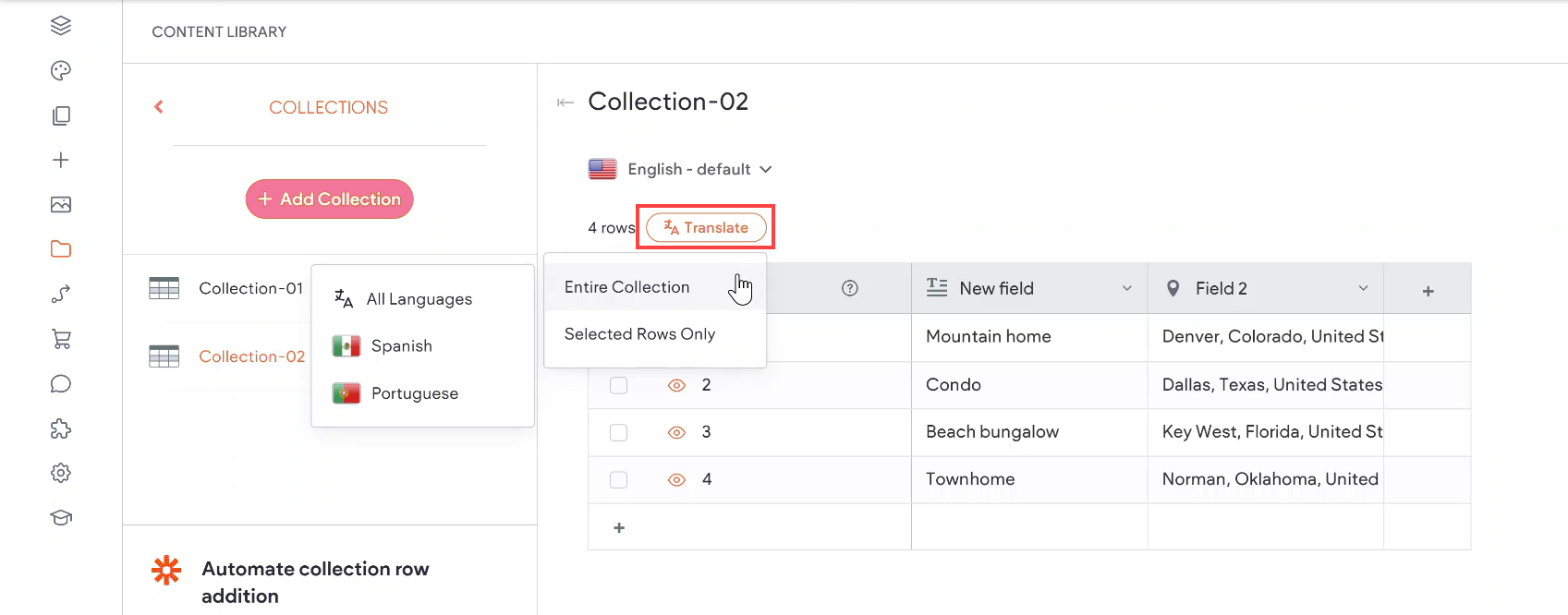
If the Translate button is not clickable, you need to use the dropdown menu to select the default language. Translations can only be completed from the default language.
Duplicate an Internal Collection
To duplicate a collection:
-
In the side panel, click CMS.
-
Click Collections.
-
Click the three horizontal dots
 for the collection you would like to duplicate.
 -
Click Duplicate Collection.
-
Click on the copied collection to open and edit it.
Edit Internal Collections
Internal collections can be edited from either the Content Area or from the Dynamic page it's connected to.
Edit in the Content Area
The following are available actions and options:
-
To rename the collection, click the collection name and type a new name.
-
Click + Add Row at the top or the plus (+) icon located below the last row to add a row (in the Item column, enter what you would like the item's URL to be).
-
To add a new field/column, click the plus icon (+) located next to the existing fields/columns. This will insert a new field in the Internal Collection.
-
Double-click in a field to add information.
-
Click the eye icon to hide the row, this will make it inaccessible from any dynamic pages or widgets connected to the collection.
-
To reorder the columns, click-and-drag the desired column to the right or left.
-
To edit the content of a full row, hover on the row and click the arrows to open the row in a separate dialog. Alternatively, right-click the row, and then select Edit Row.
-
To edit the field types, click the arrow next to the field, and select Edit Field.
-
Click the check box for one or multiple rows/records to:
-
Set Visibility. Hide or show selected elements (same action as clicking the eye icon to hide the row).
-
Duplicate. Duplicate the selected rows.
-
Delete. Delete the selected rows.
-
Note
-
The first column, labeled Item, is a mandatory field and each row must have a unique value. The column name is not editable and can not be reordered.
-
Use special characters with caution in the Item column as they can cause issues with dynamic pages or widgets connected to the collection.
-
For detailed information on configuring the Item field for use on regular pages, Dynamic Content: Collections for Regular Pages
Edit from the Dynamic Page
To edit a row in an internal collection from a dynamic page:
-
Open the Dynamic Page connected to the collection to edit the page in Dynamic Mode.
-
In the top toolbar, click the Edit Row button.
-
Edit any fields and at the top of the page, click Done.
Note
Edits made to internal collections will be available on the live site when the site is published or republished.
Convert Collection Fields
You can convert field types between the following fields (even if the fields already contain data):
-
Plain text
-
Rich text.
-
Number
Note
-
Converting from rich text to plain text removes all markup from the field.
-
Converting from rich text or plain text to number fields is possible if the data in the field only contains numbers.
To convert collection field types:
-
In the side panel, click CMS.
-
Click Collections.
-
Open the collection containing the field you want to convert.
-
Click the name of the field you want to convert, and click Edit Field.
-
Select a new field type from the drop-down list.
-
Click Convert.
To undo the change, click the field name, and then click Revert Field Change.
Publish Collection Data
The data in your collection (or new data added to the collection) does not display on the live site until the site has been published, or republished.
If you are not ready to publish or republish the site, but you want the data from a specific collection to display, you can publish just the specific collection and push the updated data live.
To publish a specific collection:
-
In the side panel, click CMS.
-
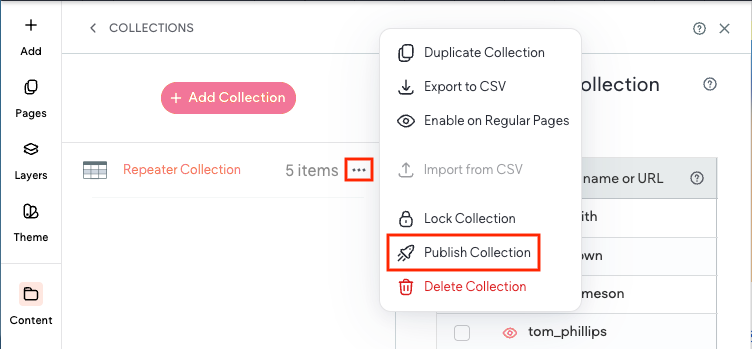
Click Collections, then click the three dot icon next to the desired collection.
-
Click Publish Collection.
Export Internal Collection to CSV
To export an internal collection to CSV:
-
In the side panel, click CMS.
-
Click Collections.
-
Click the three horizontal dots icon
 next to the desired internal collection.
 -
Select Export to CSV.