Website Builder
Dynamic Content: Collections
Dynamic Content: Collections
Collections are an essential part of customized dynamic content solutions, such as dynamic pages. They function like databases that store lists of items with the same type of information (such as name, location, image, etc.). Collections serve as the data source, enabling the automatic display of updated content on dynamic pages or across your site when using collections on regular pages. While built-in features like blogs also use dynamic content, collections are critical for customized dynamic content solutions.
There are four types of collections (see Collection Types in this article). While collections are essential for dynamic pages, they can also be used on regular pages. For more information, see: Dynamic Pages and Collections for Regular Pages.
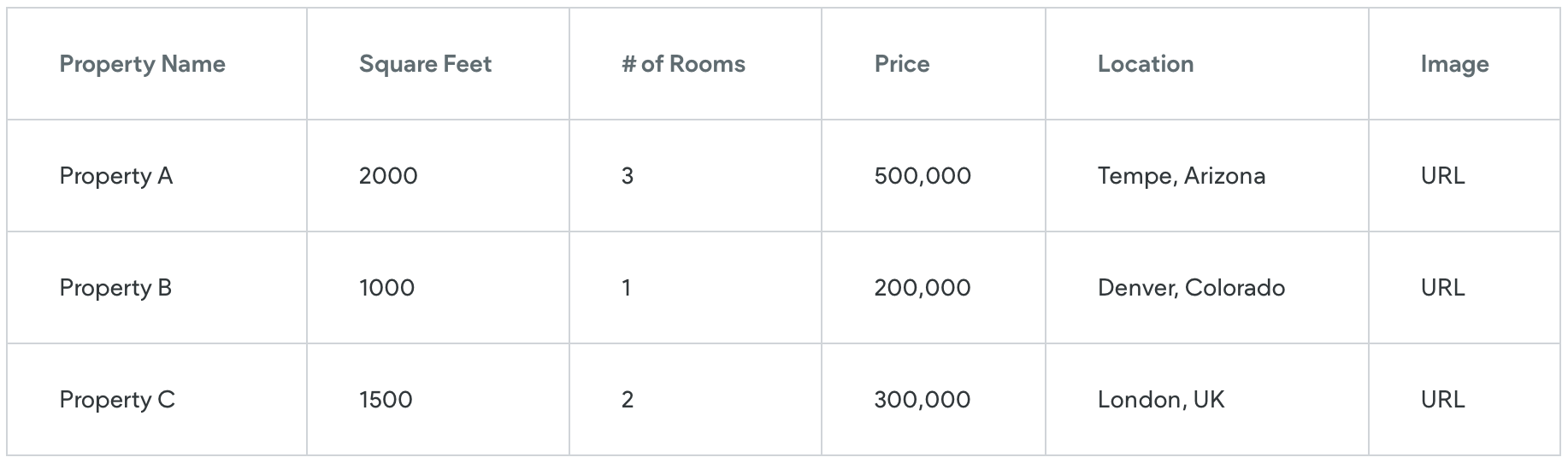
For example, a collection might contain information about properties available to rent:
Collection Types
You can create many types of collections.
-
Dynamic Content: Internal Collections (stored in the editor)
Collection Guidelines
Limitations and Specifications per Collection Type
Internal Collections
Google Sheets
Airtable
External
Collection Number per Site
100
100
100
100
A single collection's data
N/A
20MB
20MB
20MB
Rows
500
N/A
N/A
N/A
Fields (columns)
150
100
100
100
Collection name character limit
50
50
50
50
Field name character limit
50
50
50
50
Page item URL character limit
350
350
350
350
Text field character limit
5000
N/A
N/A
N/A
Inner collection Rows
Not supported
Not supported
Supported
N/A
Image Collection
Supported
N/A
N/A
N/A
Update data
Site/content library publish
Automatically
Automatically every hour
Automatically every hour
Essential Formatting Guidelines
All collections should adhere to the following guidelines:
-
Field Names. The first row of the collection must contain the field names (for example, Number of Rooms).
-
Data Type. Data must be structured correctly based on the data type.
-
URL Field. Must be formatted as a string and only supports lowercase characters, numbers, dashes and underscores. Special characters are not supported.
-
Page Item URL Field (Airtable and Google Sheets). You must select a field from the Page item URL drop-down in the collection to define the URL of each page and what appears in the editor drop-down. If you already have a text field named page_item_url in your collection, it will automatically be mapped to this drop-down. If this field is not defined, page URLs are assigned numbers (Google Sheets) or a random string (Airtable).
-
Page Item URL. It is recommended the URL be in a URL format (for example this-is-an-example). The URL cannot contain special characters.
-
Business Hours. To use Business hours you must use the following specific structure in a text field (field type: business hours):SAT, SUN: 08:00-20:00; MON, FRI: 08:00-12:00;
-
Location. To use Location you must use the following specific structure in a text field (field type: location):
String - streetAddress, postalCode, region, city, country
846 Kerry Way, 90017, CA, Los Angeles, US
The geo location is calculated from this string, the postal code is not mandatory but if the address is not written correctly (typos for example) we might not find it.
-
Nested Pages (Page Item URL; Airtable and Google Sheets). Collection names and URLs cannot contain nested pages for Airtable or Google Sheets. For example, you cannot use a page item URL with the structure example/subpage. This is supported for Internal Collections.
Available Fields
Below is a table with the data types that are available.
Note
For further details and data examples for specific collections types, please see their articles (Internal Collections, Dynamic Content: Google Sheets Collections, and Dynamic Content: Airtable Collections ).
Data Type
Uses and Notes
Plain Text
Standard text, can be used for widgets such as title tags and text widgets.
Rich Text
Rich text contains formatting, such as colors, styles, and links. Please note, rich text will come over differently per collection type, see documentation for each collection type (Internal Collections, Dynamic Content: Google Sheets Collections, Dynamic Content: Airtable Collections ). Not recommended for Airtable collections.
Image
This type is for a single image only.
Please note that the input methods are different per collection type, see documentation for each collection type (Internal Collections, Dynamic Content: Google Sheets Collections, Dynamic Content: Airtable Collections ).
Link
Pages will result in a 404 error if the URL contains a space at the beginning or end.
Number
Standard number. Can be whole numbers or decimals.
Date & Time
This field can be used for sorting when using the filters or sort functionality in the Connected Data pop-up.
Business Hours
Please note that the input methods are different per collection type, see documentation for each collection type (Internal Collections, Dynamic Content: Google Sheets Collections, and Dynamic Content: Airtable Collections ).
Location
Please note that the input methods are different per collection type, see documentation for each collection type (Internal Collections, Dynamic Content: Google Sheets Collections, and Dynamic Content: Airtable Collections ).
Video
Added with a link (Vimeo, YouTube, and Dailymotion videos are supported (videos uploaded to the editor, aren't able to be used in collections).
-
Phone
-
Social Accounts
Supported social networks: email, whatsapp, facebook, twitter, instagram, youtube, linkedin, yelp, pinterest, google_my_business, waze, vimeo, snapchat, reddit, tripadvisor, foursquare, rss.
Please note that the input methods are different per collection type, see documentation for each collection type (Internal Collections, Dynamic Content: Google Sheets Collections, and Dynamic Content: Airtable Collections ).
Multi-Select
This field can be used to filter the displayed collection in widgets, such as photo gallery, list, accordion, and custom widgets that connect to collections.
Please note that the input methods are different per collection type, see documentation for each collection type (Internal Collections, Dynamic Content: Google Sheets Collections, and Dynamic Content: Airtable Collections ).
Inner Collection
Only available for Airtable collections (see Dynamic Content: Airtable Collections).
For Internal Collections, this is the data type Image Collection
Image Collection
Only available for Internal Collections (see Dynamic Content: Internal Collections).
For Airtable, this is the data type, Inner Collections.
Add a Collection to a Site
To add a collection to a site:
-
In the side panel, click CMS.
-
Click Collections, then click +New Collection.
-
Select the type of collection you want to create.
-
When adding a Google Sheet or Airtable collection, define the correct data type for each field.
Publish Collection Data
The data in your collection (or new data added to the collection) does not display on the live site until the site has been published, or republished.
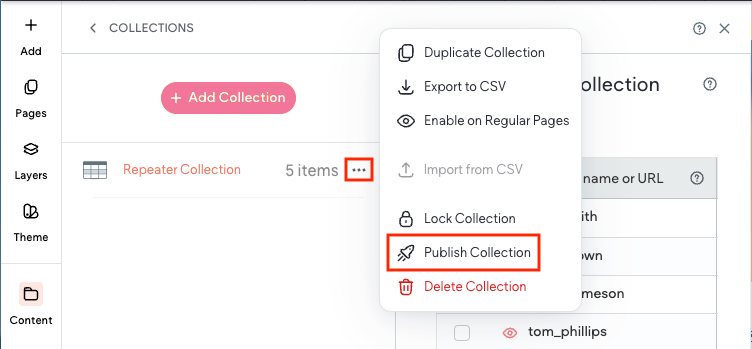
If you are not ready to publish or republish the site, but you want the data from a specific collection to display, you can publish just the specific collection and push the updated data live.
To publish a specific collection:
-
In the side panel, click CMS.
-
Click Collections, then click the three dot icon next to the desired collection.
-
Click Publish Collection.