Website Builder
Dynamic Content: Google Sheets Collections
Dynamic Content: Google Sheets Collections
Google Sheets can serve as a collection, allowing you to create Dynamic Pages (see Dynamic Content: Dynamic Pages) as well as enhance regular pages. Using a collection on a regular page is similar to how Connected Data is used with the site's Business Info (see Dynamic Content: Collections for Regular Pages). For more information on Connected Data with Business Info, see Dynamic Content: Business Info, Text, and Images.
For an overview on Collections and formatting guidelines, see Dynamic Content: Collections.
Note
-
Only native Google Sheets are compatible. For example, spreadsheets that are uploaded to Google Drive and not saved as a Google Sheet will return an error if selected.
-
Data is only pulled from the first tab of Google Sheets. If you have multiple tabs on your Google Sheet, we recommend creating seperate Google Sheets for each tab and connect them as different collections.
Limitations and Specifications per Collection Type
Internal Collections
Google Sheets
Airtable
External
Collection Number per Site
100
100
100
100
A single collection's data
N/A
20MB
20MB
20MB
Rows
500
N/A
N/A
N/A
Fields (columns)
150
100
100
100
Collection name character limit
50
50
50
50
Field name character limit
50
50
50
50
Page item URL character limit
350
350
350
350
Text field character limit
5000
N/A
N/A
N/A
Inner collection Rows
Not supported
Not supported
Supported
N/A
Image Collection
Supported
N/A
N/A
N/A
Update data
Site/content library publish
Automatically
Automatically every hour
Automatically every hour
Available Fields
Data Type
Examples
Notes
Plain Text
Welcome to my dentist office.
Standard text, can be used for widgets such as title tags and text widgets.
Rich Text
Welcome to my dentist office.
Text styles will not carry over. Links added with an <a> tag (for example <a href="https://www.domain.com/">Example Link</a>) in Google Sheets will be retained. Note that the href in the <a> tag must include the full URL structure, including HTTPS.
Image
https://irp.cdn-website.com/tr59jkwo/dms3rep/multi/name.jpg
To upload an image in the editor and obtain its URL:
-
In the side panel, click CMS.
-
Click Media Manager.
-
Upload an image or if it's already uploaded, locate it.
-
Hover over the desired image and click Select.
-
The image and additional information should appear. Under the larger thumbnail, click the name of the file (for example: name.jpg).
The image should open in a new tab with its URL in the browser's address bar.
Link
Example: https://goo.gl/maps/F81HPm4CBTQSTsJ5A
Pages will result in a 404 error if the URL contains a space at the beginning or end.
Number
10,000
After selecting the Number Data Type, click Format to format the number.
Date & Time
2021-10-06 16:12:00
The following formats are supported:
-
Date and time. YYYY-MM-DD HH:MM:(SS) displays as 2021-10-07 10:15:(00)
-
Date only. YYYY-MM-DD displays as 2021-10-07
-
Time only. HH:MM:(SS) displays as 10:15:(00)
When displaying date only, the time will default to 0:00. When displaying time only, the date will default to 1970-01-01.
If the date and time are formatted differently than the supported formats, they will not be imported correctly and cannot be used to format or sort.
This field can be used for sorting when using the filters or sort functionality in the Connected Data pop-up.
Business Hours
SAT, SUN: 08:00-20:00; THU, FRI: 08:00-12:00;
-
Location
846 Kerry Way, 90017, CA, Los Angeles, US
Format: streetAddress, postalCode, region, city, country
Video
https://www.youtube.com/watch?v=8EsYwAKxAFU
Vimeo, YouTube, and Dailymotion videos are supported (videos uploaded to the editor, aren't able to be added in Collections).
The following formats must be used:
-
YouTube:
https://www.youtube.com/watch?v=8EsYwAKxAFU) -
Vimeo:
https://player.vimeo.com/video/77523904 -
Dailymostion:
https://www.dailymotion.com/embed/video/x70n2l8
-
Phone
123456789
-
Social Accounts
email: my@gmail.com; whatsapp: 123456; facebook: Website Builder;
Format must be: name: value; name: value;
Supported social networks: email, whatsapp, facebook, twitter, instagram, youtube, linkedin, yelp, pinterest, waze, vimeo, snapchat, reddit, tripadvisor, foursquare, rss.
Multi-Select
-
In Google Sheets, options must be separated by a semi colon, for example: first option; second option; third option. When you import the collection to the editor, click Options to add the options. Each row in the collection can be assigned one or more of the options you created.
This field can be used to filter the displayed collection in widgets, such as photo gallery, list, accordion, and custom widgets that connect to collections.
Connect a Google Sheets Collection
To connect a Google Sheets collection:
-
In the side panel, click CMS.
-
Click Collections, then click +New Collection.
-
Click Google Sheets.
-
Click Sign in With Google.
-
Sign in to the Google Account that contains the collection.
-
Select the Google Sheet you want to use as your collection.
Note
Only native Google Sheets are compatible. For example, spreadsheets that are uploaded to Google Drive and not saved as a Google Sheet will return an error if selected.
-
Click Connect Spreadsheet.
-
Define the correct data type for each field.
-
Click Done.
Note
Inner collections are currently not supported with Google Sheets.
Add a New Column to a Google Sheets Collection
To add a new column to a Google Sheets collection:
-
In the side panel, click CMS.
-
Click Collections.
-
Click to open the Google collection.
-
Click +Add Field.
-
Select the data type from the Data Type drop down menu and type the name of the field in the Field Name space.
-
Click Refresh Data.
The new column appears in the available fields when connecting a widget.
Set Google Sheets Collection Sync Frequency
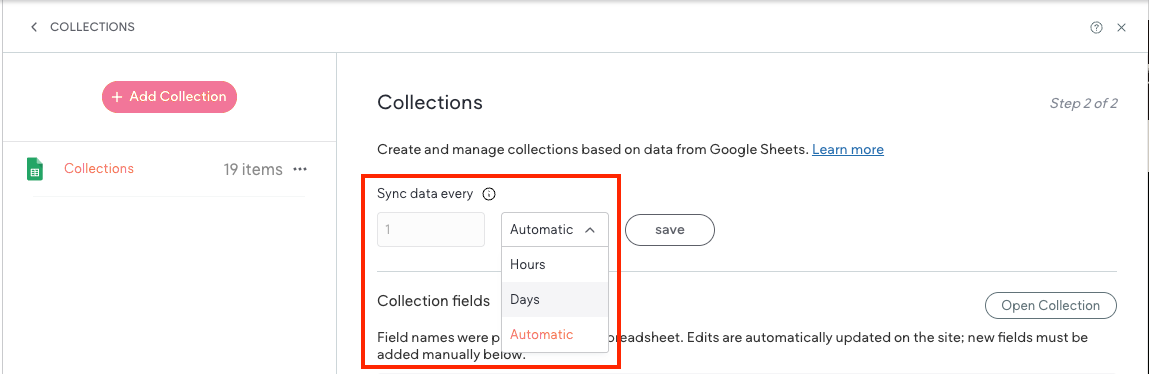
By default, external collection data is synced every hour. However, due to API call limits on different platforms, this can quickly deplete available calls and lead to service disruptions. To prevent this, you can set how often your external collection data is synced. This allows you to ensure you do not exceed the amount of API calls your external collection platform allows.
To set how often external collection data is synced:
-
In the side panel, click CMS.
-
Click Collections and open the desired external collection.
-
At the top of the external collection under Sync data every, use the arrows to select a number, then use the dropdown menu to select either Hours or Days. By default, Automatic is selected. This is the default and means your collection data is synced every hour.
Note that the sync timing only applies to the current external collection. You must set each external collection sync timing individually.
-
Click Save.
-
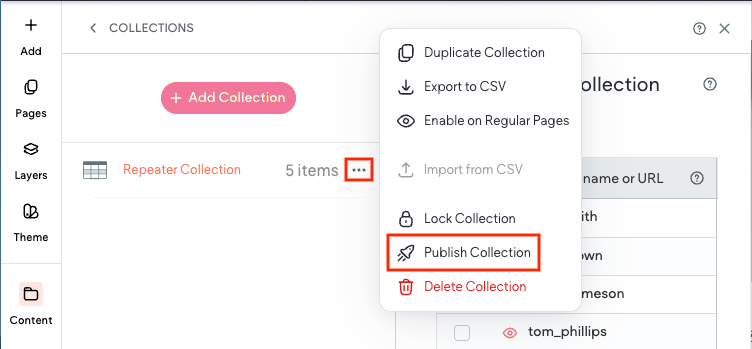
Click the three dot icon next to the collection and select Publish.
Publish Collection Data
The data in your collection (or new data added to the collection) does not display on the live site until the site has been published, or republished.
If you are not ready to publish or republish the site, but you want the data from a specific collection to display, you can publish just the specific collection and push the updated data live.
To publish a specific collection:
-
In the side panel, click CMS.
-
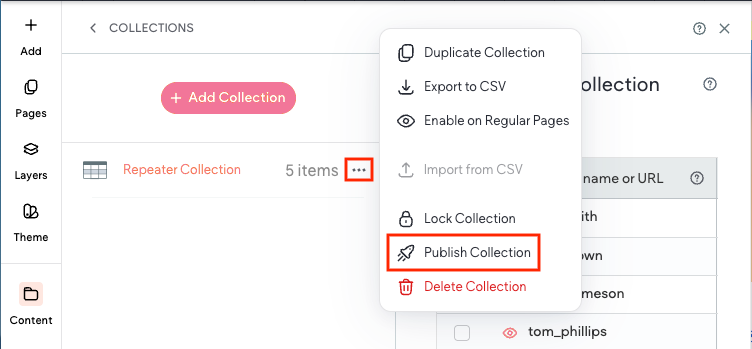
Click Collections, then click the three dot icon next to the desired collection.
-
Click Publish Collection.
Troubleshooting
I received a This app is blocked error
The issue was caused by a security change on Google's end that we had to comply with.
To fix it:
-
Navigate to myaccount.google.com/connections.
-
Search for Website Builder.
-
Click Delete all connections you have with Website Builder.
-
Go back to the editor, and try to connect again.